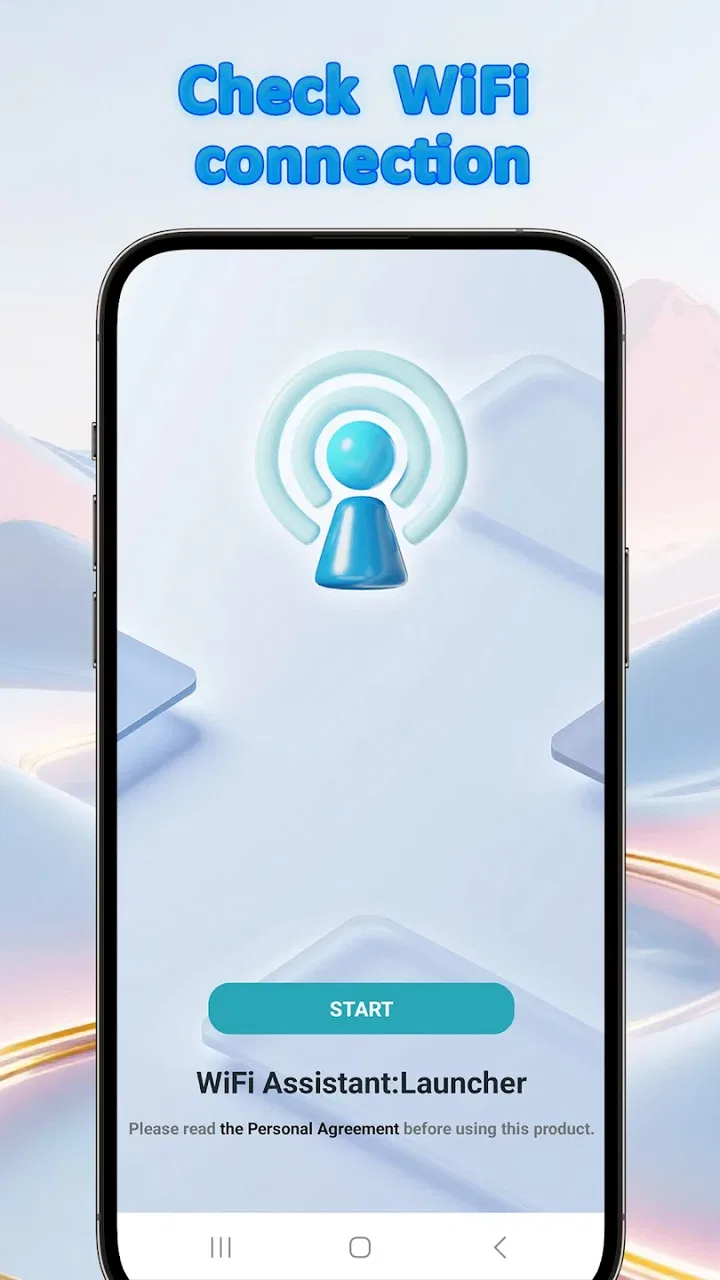
WiFi Assistant:Launcher
- 4.4
- Rating
- 100.00K
- Installs
- Free
- Price

 Analysis by App-foxy
WiFi Assistant:Launcher is the kind of tools app I would reach for when a wireless connection feels unreliable but the usual phone settings are too scattered to explain why. Its central idea is straightforward: help me understand my network instead of leaving me to guess whether the problem is the router, the signal, or the device itself. After using it, my view is that it is most useful as a practical diagnosis companion, not as a magic button that can repair every connection problem automatically.
That distinction matters. A Wi-Fi utility can be helpful without making the internet faster by itself. What I value here is the focus on visibility and stability. The app gives the experience of having a dedicated place to inspect a wireless setup, which is more convenient than repeatedly opening system menus and trying to interpret isolated pieces of information. For anyone who often moves between home, work, school, cafés, or shared spaces, that focus can make troubleshooting less frustrating.
What makes this Wi-Fi tool useful in daily life
Ancient Capital Labs presents this free Android app in the Tools category, with a clear purpose around understanding a network and keeping it dependable. It is available to users rated Everyone, and the current release is version 1.0. The app runs on Android 10 or newer, so compatibility is reasonably broad for recent phones, although people using older devices will need to check their operating system before expecting to install it.
You May Also Like

 Blood Strike: 2.5 Anniversary
Blood Strike’s Loadouts Turn Every Drop Into a Tactical Gamble
A close look at Blood Strike’s custom loadouts: how fast access to signature weapons reshapes its battle royale rhythm, rewards preparation, and narrows the gap between fights.

 Pandora - Music & Podcasts
Pandora’s Music Is Easy to Start, but Harder to Recover
Pandora’s strength is its low-effort path from a seed to a station. Its weak spot is how much confidence it asks you to place in connection, setup, and quiet recovery.

 8 Ball Pool
 Is Built on Rivalries, Rematches, and Routine
A close look at the rivalries, rematches, shared routines, and unanswered safety questions that turn a quick pool match into a persistent mobile community.

 Samsung Music
’s Quiet Strength Is Playing What You Already Own
Its reach comes less from spectacle than from dependable access to a personal library. That simplicity is both the app’s strongest retention engine and its ceiling.

 AccuWeather: Weather Radar
AccuWeather Review: A Quick, Clear Forecast for Everyday Decisions
For everyday plans, the best forecast is the one you can understand quickly. AccuWeather makes rain timing, radar, and local conditions easy to act on, with a few trade-offs.

 Hill Climb Racing
Why Hill Climb Racing Still Turns Crashes Into One More Run
A tiny car, a bumpy hill and one more upgrade: Hill Climb Racing keeps resurfacing because its simple chaos makes every near-miss feel personal.
More From Our News Desk
View All News


The first strength is its narrow subject. Many phone settings are designed for changing a connection, forgetting a network, or entering a password. They are not always arranged for someone who wants to investigate a recurring problem. A dedicated Wi-Fi assistant can make that process feel more deliberate: first inspect what is happening, then decide whether the problem is worth fixing locally, moving closer to the router, restarting equipment, or contacting the internet provider.
I also like the idea of treating reliability as more important than a single impressive speed result. A connection can look fast for a moment and still be annoying during video calls, online classes, cloud backups, or gaming if it keeps dropping or fluctuating. When I review a tool like this, I look for whether it helps separate those situations rather than reducing everything to one number. That is where this app’s purpose feels more useful than a basic speed-test shortcut.
A realistic example is a home office where a laptop works well in one room but a phone struggles in another. Instead of immediately buying a new router, I would use the app as part of a simple process: inspect the wireless connection near the router, repeat the check in the problem room, and compare the experience while performing the same task. If the issue follows the room, placement or signal reach becomes a stronger suspect. If it appears everywhere, the router, service, or phone may deserve attention instead.
A sensible workflow instead of random troubleshooting
The most useful way to approach this app is as a repeatable checklist. I would begin with the network in a location where the connection is normally dependable. That gives me a reference point. Then I would check the same network near the area where problems occur, keeping the test conditions as similar as possible. This is more informative than opening the app only after a failure and trying to remember what “normal” felt like.
Another practical habit is to check at different times of day when a problem seems inconsistent. A connection that is fine early in the morning but unstable in the evening may involve congestion or service demand rather than a simple weak-signal issue. The app cannot turn that observation into a guaranteed diagnosis, but it can help me collect a clearer pattern before I change equipment or blame the phone.
The real advantage is turning vague frustration into a comparison. That is a small change, but it is the difference between saying “the Wi-Fi is bad” and identifying whether the trouble is tied to a room, a time, a device, or one particular network. For household users, that can prevent unnecessary purchases. For someone supporting relatives, it can also make a remote conversation more concrete because the person can describe what they observed rather than only reporting that the internet “feels slow.”
I would also keep the app in mind when switching between familiar networks. Public Wi-Fi, guest networks, and workplace connections can behave differently even when the signal appears strong. A connection may require a sign-in page, restrict certain services, or become unreliable when many people are using it. An assistant focused on network awareness is more relevant in those situations than a general phone-cleaning utility, because it keeps attention on the connection itself.
Where it fits beside ordinary Android settings
Android’s built-in Wi-Fi screen remains the quickest choice for simple tasks. If I only need to connect to a known network, enter a password, or forget an old connection, opening system settings is usually faster. There is no reason to use a separate tool for a job the phone already handles comfortably.
The value of this app appears when the question changes from “How do I connect?” to “Why does this connection behave differently here?” A dedicated interface can be easier to revisit during troubleshooting, especially for people who do not want to navigate through several settings pages. It also encourages a more methodical approach than repeatedly toggling Wi-Fi off and on without learning anything from the result.
It should not be confused with a full router-management application. A router manufacturer’s app is generally the better place to change wireless channels, update firmware, manage connected devices, create guest access, or adjust parental controls. Those actions happen on the network equipment, while a phone-based assistant is better suited to observing the connection from the phone’s position. Choosing between them depends on whether I need diagnosis from the client side or control over the router itself.
It also occupies a different space from a conventional internet speed test. A speed test can answer a narrow question about performance at one moment, but it may not explain why a room, device, or time of day produces a different experience. I would use a speed test when I need a quick performance snapshot, and this assistant when I want to build a broader picture of wireless reliability. Using both can be more useful than treating either one as a complete answer.
The limitation that keeps expectations realistic
The biggest weakness is inherent to this type of app: information is not the same as repair. If the router is failing, the broadband service is congested, the walls block the signal, or the phone has a hardware issue, an assistant cannot solve the underlying cause simply by showing it more clearly. I appreciate tools that help me reason about a problem, but I would not install this expecting an automatic speed boost.
There is also a learning curve for people who are unfamiliar with network terminology. A useful diagnostic screen can still feel confusing if it presents technical details without enough context. New users may need to compare observations over time rather than understand every item immediately. That is not a deal-breaker, but it means this app is better for someone willing to investigate than for someone looking for one large “fix Wi-Fi” button.
Version 1.0 is another reason I would keep expectations measured. Early releases can be perfectly usable, yet they may feel less polished than long-established network utilities. I would judge it by whether it helps with my actual connection questions, not by expecting the depth of a mature professional networking suite. The app’s relatively focused purpose works in its favor, but it also means users should not assume it replaces every other network tool.
Privacy-conscious users should make their own comfort decision before using any network-related utility. I would read the app’s permission prompts carefully and avoid granting access that does not make sense for the task. That is good practice with any diagnostic application, especially one that operates around wireless information. The app being free is convenient, but free does not automatically mean every user will want the same level of access or visibility on a personal device.
Who should install it, and who should skip it
I think this is a good fit for people who regularly troubleshoot home Wi-Fi, move around buildings with uneven coverage, or want a clearer routine for checking a connection before changing hardware. It may also suit families where one person is usually asked to diagnose everyone else’s internet problems. Having a focused utility on the phone can make those conversations less dependent on guesswork.
It is especially sensible for someone who notices location-based problems. If streaming works beside the router but calls become unreliable in a bedroom, the app can support a comparison between those places. The important insight is not a single reading; it is the pattern. I would record the location, time, and task being performed, then look for repeated behavior. That simple habit gives the tool more value than opening it once during an unusually bad connection.
People who want to manage a router in detail should choose a manufacturer’s control app instead. Network administrators and advanced users may also prefer a more specialized analyzer with deeper controls and reporting. Likewise, if a person’s only need is to run an occasional internet speed check, installing a dedicated Wi-Fi assistant may add an extra step rather than improve the experience.
Gamers should be particularly realistic. A stable wireless connection matters, but online lag can come from the game server, the internet route, background traffic, or the service provider. This app may help identify whether the home wireless environment deserves investigation, but it cannot guarantee lower latency in every game. The same caution applies to video calls: it can support diagnosis, while the final solution may still involve router placement, wired networking, or contacting the provider.
The app has already passed the early discovery stage, with over one hundred thousand installs and an average rating of 4.4 from around one hundred ratings. Those figures suggest that it has found an audience, but I would still treat them as context rather than proof that it will solve every household’s setup. Network problems vary widely, and a tool that is excellent for comparing rooms may be less useful for someone whose issue is entirely outside the local wireless network.
My verdict after looking at the whole package
WiFi Assistant:Launcher succeeds because it aims at a common frustration from a practical angle: people need to understand an unreliable wireless connection before they can make a sensible decision. I like it most as a companion for observation, comparison, and structured troubleshooting. Its free price removes the usual barrier to trying a focused utility, and the Everyone rating makes it approachable for a broad household audience.
My recommendation is specific. Install it if you want to investigate why Wi-Fi behaves differently from one place or situation to another, and use it alongside a simple written record of location, time, and symptoms. Skip it if you expect an instant repair, advanced router administration, or a replacement for a specialized network analyzer. In those cases, Android settings, a router-control app, or a conventional speed test may be the better tool.
For me, the app’s strongest quality is that it encourages better questions. Instead of restarting equipment repeatedly, I can ask whether the problem is local to one room, one device, one period, or one network. That will not fix a damaged router or an overloaded service, but it can stop me from making the wrong fix. As a focused Android Tools app from Ancient Capital Labs, it is worth considering for anyone who values a more stable and understandable Wi-Fi experience over flashy promises.
FAQs for WiFi Assistant:Launcher
01What is WiFi Assistant:Launcher and how does it work?
WiFi Assistant:Launcher is an app designed to optimize your device's WiFi connectivity. It automatically connects to the best available network, ensuring a stable and fast internet experience. The app also provides tools for network management and monitoring, making it easier to troubleshoot connectivity issues.
02Is WiFi Assistant:Launcher safe to use?
Yes, WiFi Assistant:Launcher is designed with user security in mind. It uses secure protocols to connect to WiFi networks and does not store or share personal data. However, always ensure you download it from official app stores to avoid malicious versions.
03Does WiFi Assistant:Launcher drain battery life?
WiFi Assistant:Launcher is optimized to minimize battery usage. While any app that manages connectivity can have some impact on battery life, this app uses efficient algorithms to ensure that any additional consumption is kept to a minimum.
04Can WiFi Assistant:Launcher connect to all types of WiFi networks?
WiFi Assistant:Launcher can connect to both public and private WiFi networks. However, for private networks, you will need to have the necessary credentials. The app can also help identify open networks in the vicinity for quick access.
05What features does WiFi Assistant:Launcher offer?
WiFi Assistant:Launcher offers features such as automatic network switching, network speed testing, and detailed network analytics. It also provides tools for managing known networks and setting priorities for preferred connections, enhancing overall WiFi management.
Pros
- Enhances WiFi connection stability.
- Automatically connects to trusted networks.
- User-friendly interface design.
- Saves mobile data effectively.
- Customizable settings for networks.
Cons
- May drain battery quickly.
- Occasional connection drops.
- Ads can be intrusive.
- Limited free features.
- Requires background location access.

WiFi Assistant:Launcher
Gallery